Manage connections
Every AI app connected to your Callbell account is listed in Callbell, so you always know who connected what.
See the connected apps
- In Callbell, go to Settings, open Integrations and click API Settings.
- Open the Connected apps tab.
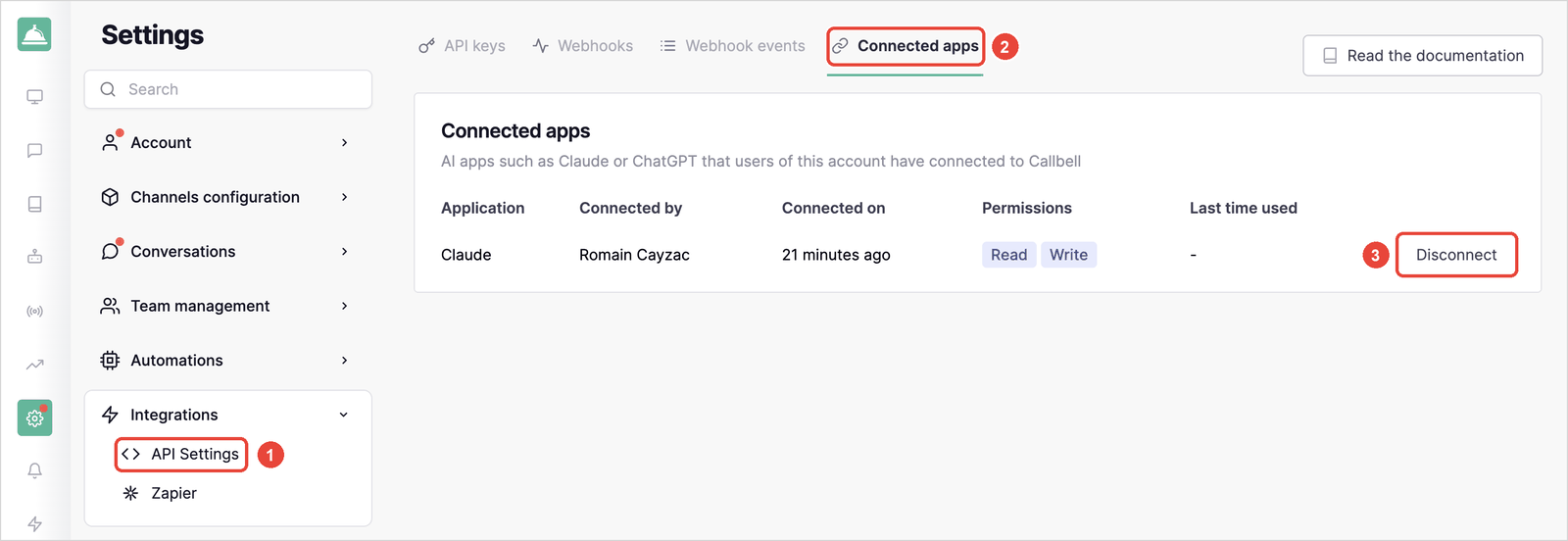
Each row is one connection:
| Column | Meaning |
|---|---|
| Application | The AI app, for example Claude or ChatGPT. |
| Connected by | The Callbell user who approved the connection. |
| Connected on | When the connection was approved. |
| Permissions | Read, or Read and Write if the user allowed the app to make changes. |
| Last time used | The last time the app called Callbell. |
Every user with access to the settings sees all the connections of the account, including the ones made by teammates.
Disconnect an app
- Click Disconnect on the connection you want to remove, then confirm.
The app loses access to the account immediately. Only that connection is removed: the same app connected by other users keeps working.
To use Callbell again from that app, connect it again from the app (for example with Connect on the Callbell connector in Claude).
tip
Disconnect, then connect again, to switch a connection between read-only and read and write.
Troubleshooting
| Message or problem | What to do |
|---|---|
| "External AI apps are not enabled on this account yet." | Contact our support team to enable the feature on your account. |
| "Only users with access to the account settings can connect an app." | Ask an administrator to give you access to the settings, or to connect the app. |
| "Finish setting up your Callbell account before connecting an app." | Complete your account setup in Callbell, then try again. |
| "This action is temporarily blocked on your user for security reasons." | Contact our support team. |
| The assistant can read your data but can't send messages or change anything. | The connection only has the Read permission. Disconnect it and connect again, ticking Allow ... to make changes. |
| The assistant says there are too many requests. | Each connection has a request limit. Wait a minute and try again. |
| The app stopped working after a disconnection. | Connect the app again from its connector settings. |