Connect ChatGPT
In ChatGPT, you connect Callbell by adding it as a custom MCP server from the Plugins page. You set it up from ChatGPT on the web.
Business, Enterprise and Edu workspaces
In company workspaces, an admin or owner may need to create the Callbell plugin and publish it to the workspace first. Members then install it and connect with their own Callbell login. See OpenAI's help article for the rules of your plan.
Step 1: Create the Callbell plugin
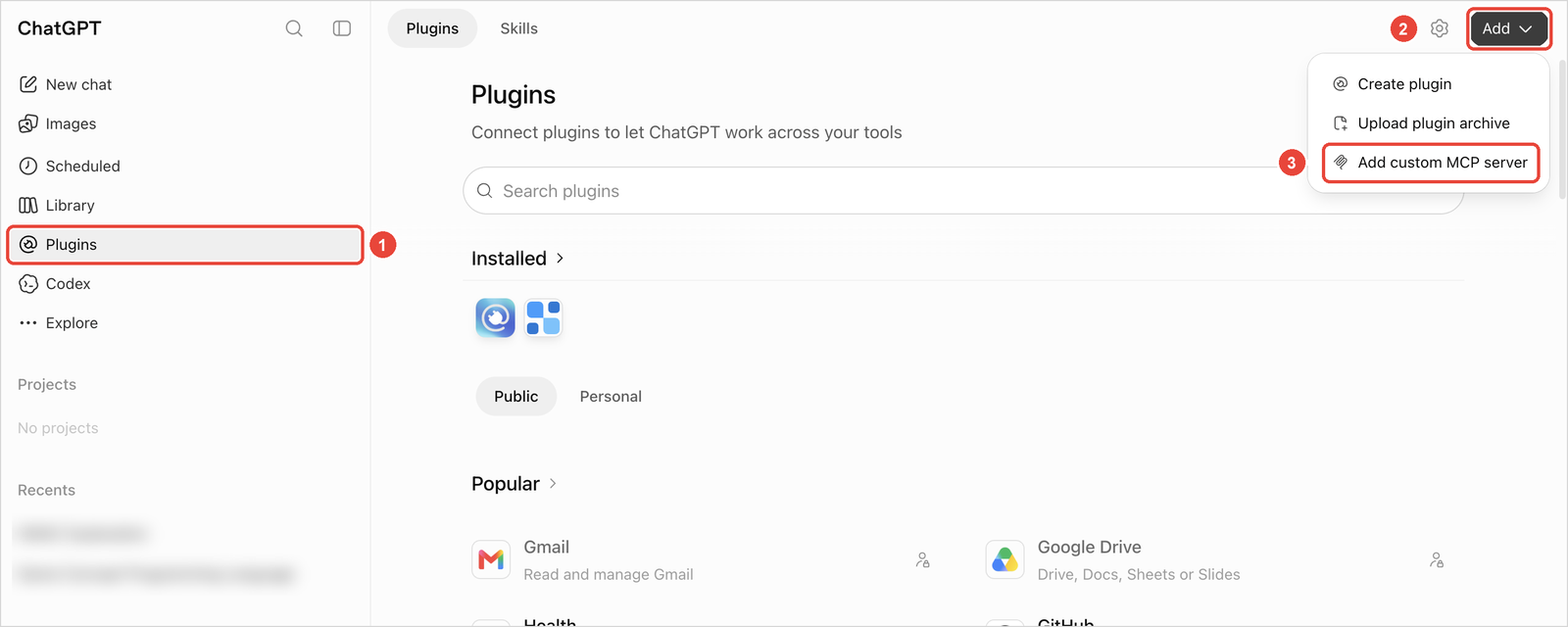
- In ChatGPT, click Plugins in the left sidebar.
- Click Add, then Add custom MCP server.
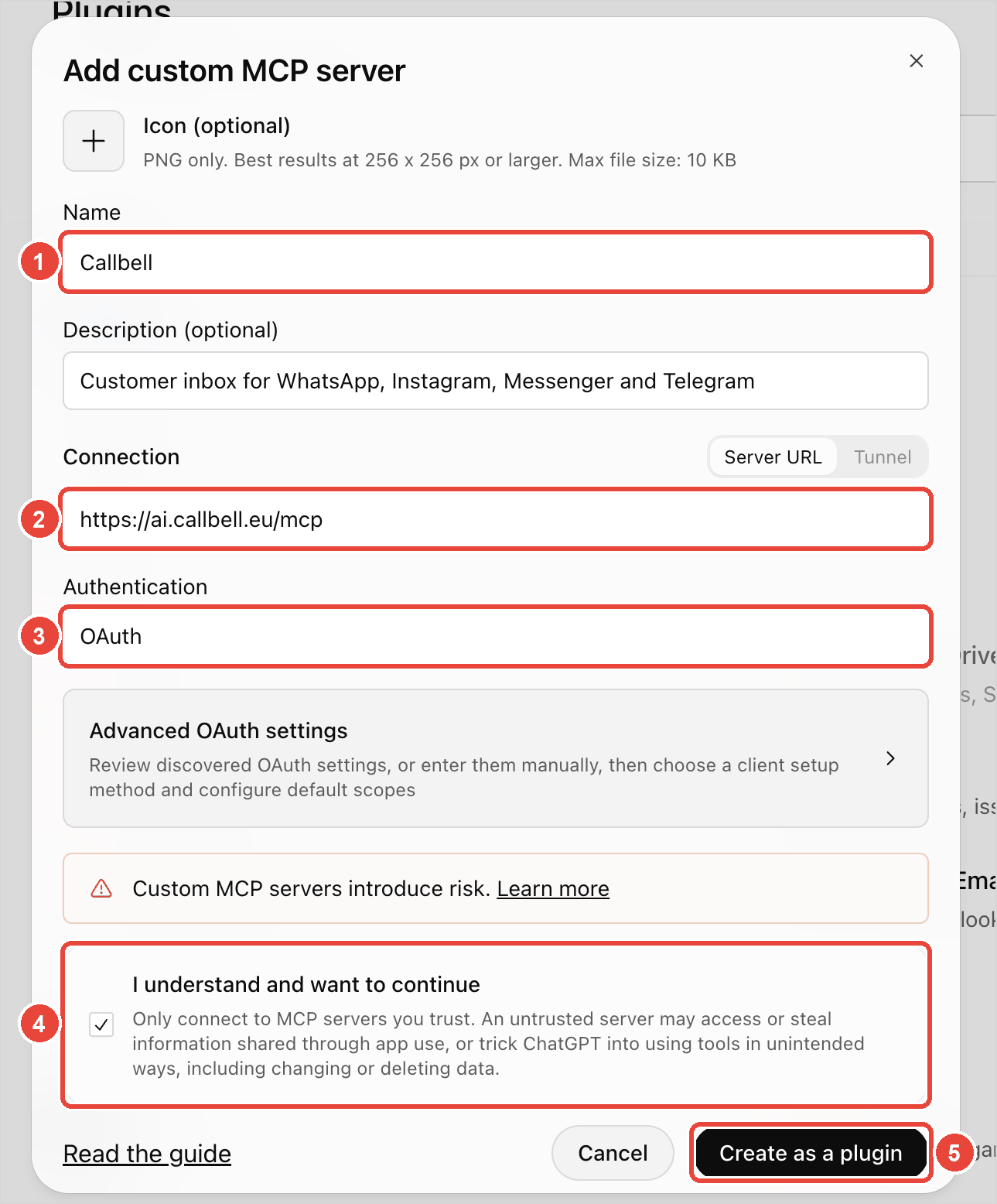
- Fill in the form:
- Name:
Callbell(the description is optional). - Connection, Server URL:
https://ai.callbell.eu/mcp - Authentication: keep OAuth. You don't need to change the Advanced OAuth settings.
- Tick I understand and want to continue.
- Click Create as a plugin.
- Name:
Step 2: Connect your Callbell account
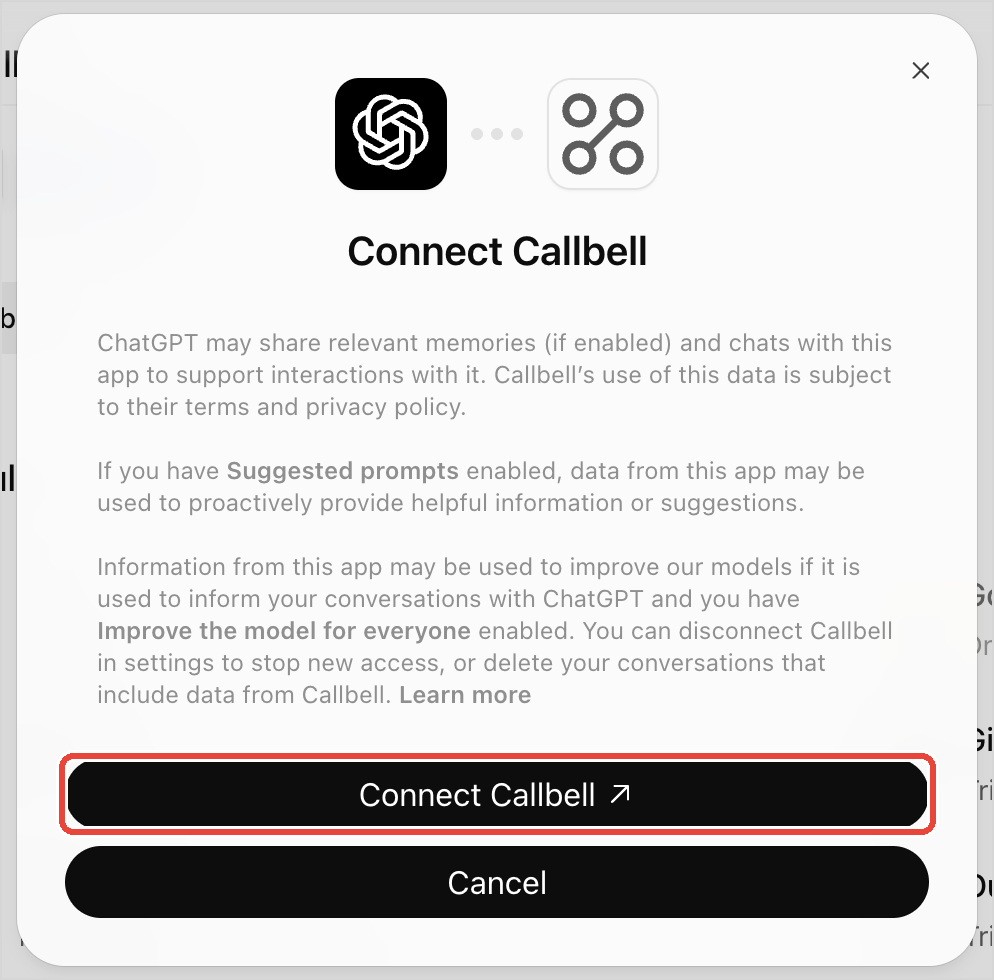
- ChatGPT asks you to connect Callbell: click Connect Callbell.
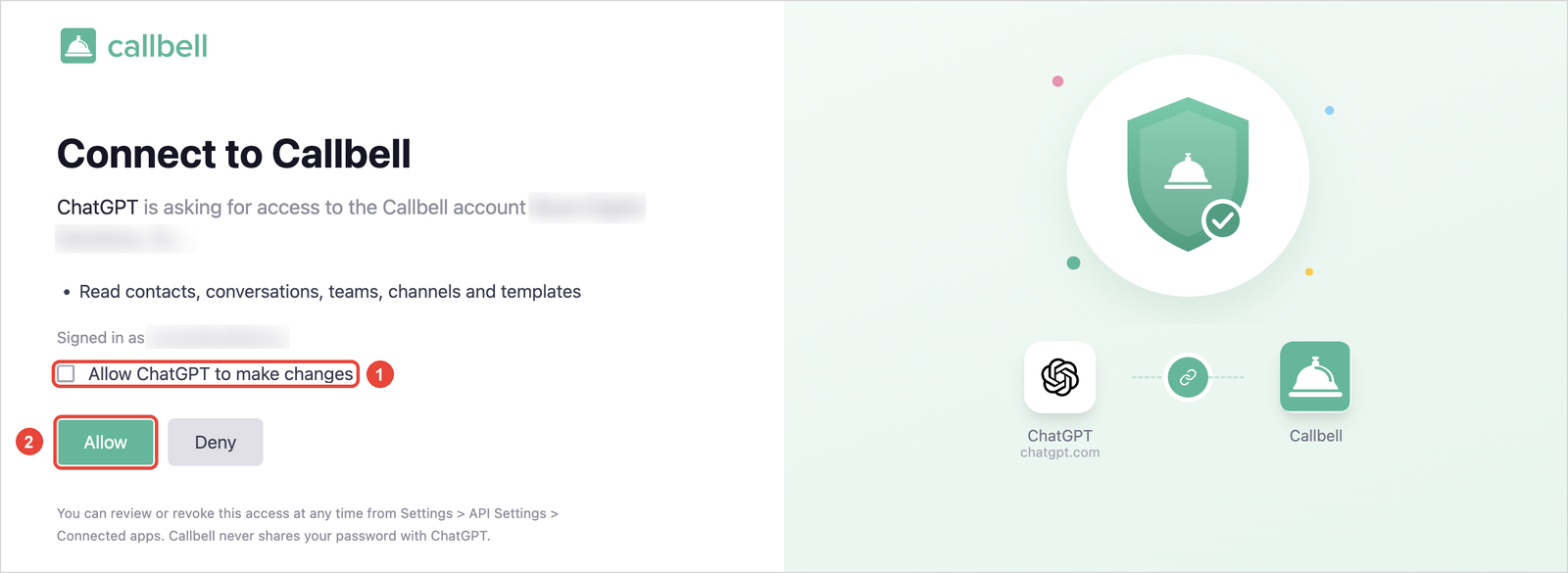
- ChatGPT opens Callbell. Log in with your Callbell user if you are not logged in already.
- Review the access request:
- Tick Allow ChatGPT to make changes only if you want ChatGPT to send messages, update contacts, add notes and close conversations. Leave it unticked for read-only access.
- Click Allow.
You are sent back to ChatGPT. Callbell now appears on the Plugins page, in the Personal tab.
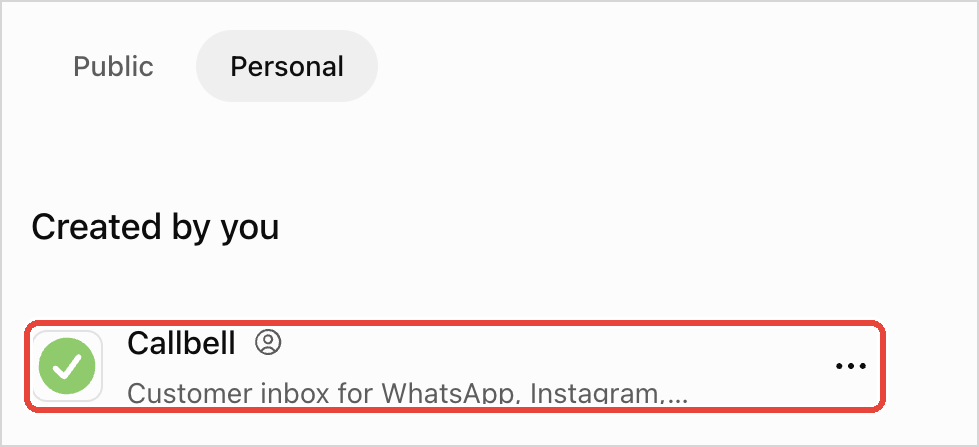
Step 3: Choose when ChatGPT asks for permission
- In ChatGPT, go to Settings > Plugins and open Callbell.
- Click Permission and choose when ChatGPT needs your approval to use Callbell.
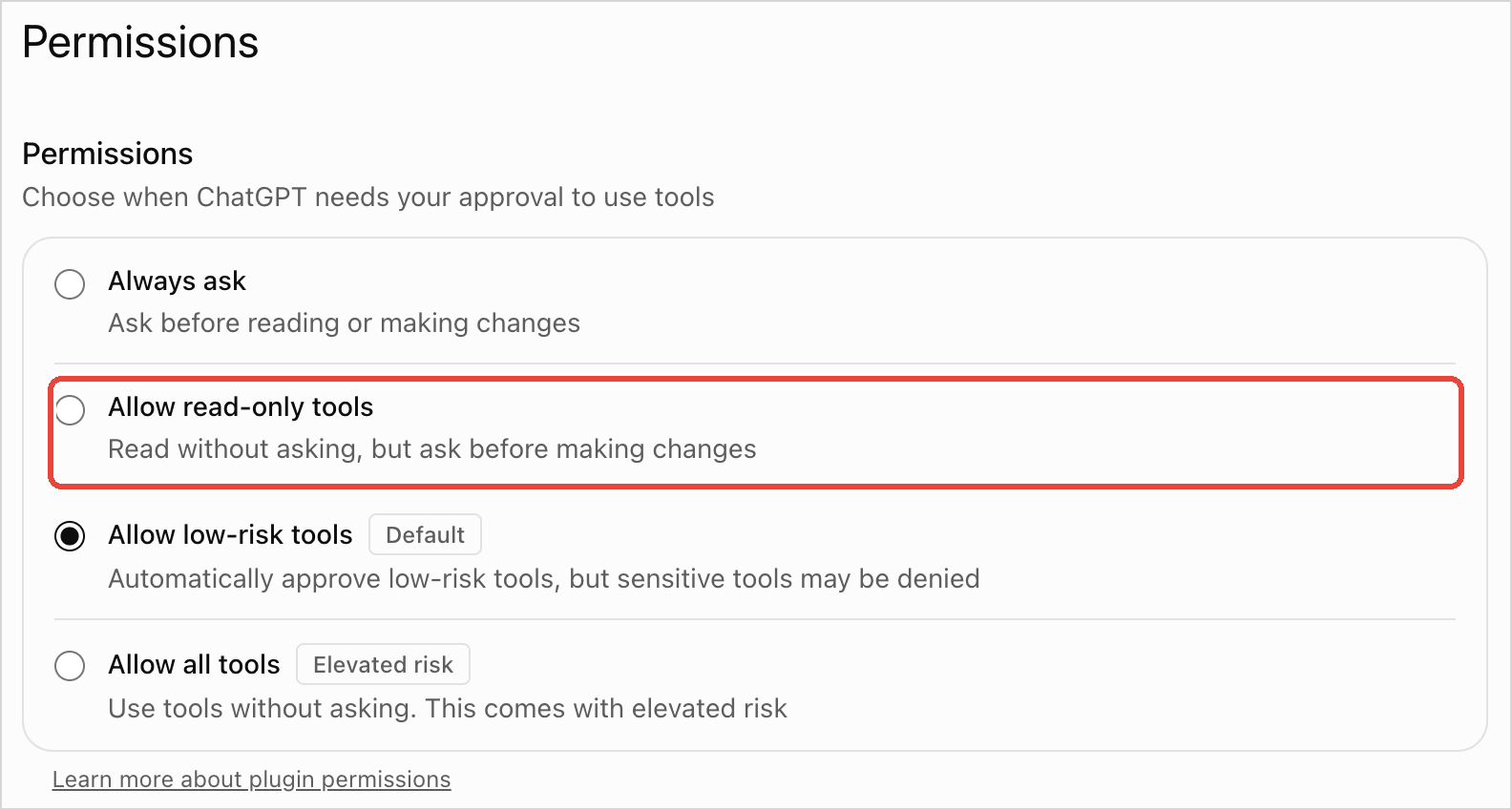
tip
Choose Allow read-only tools: ChatGPT reads your Callbell data without asking, but asks you before every change, such as sending a message.
Step 4: Use Callbell in a chat
- In a new chat, type @ and choose Callbell.

- Ask a question about your Callbell account, for example "Which teams do we have in Callbell?".

- ChatGPT answers with data from your Callbell account.

Disconnect ChatGPT
In ChatGPT, go to Settings > Plugins and open Callbell:
- To disconnect your Callbell account, click ... next to it, then Disconnect.
- To remove the plugin completely, click Uninstall.
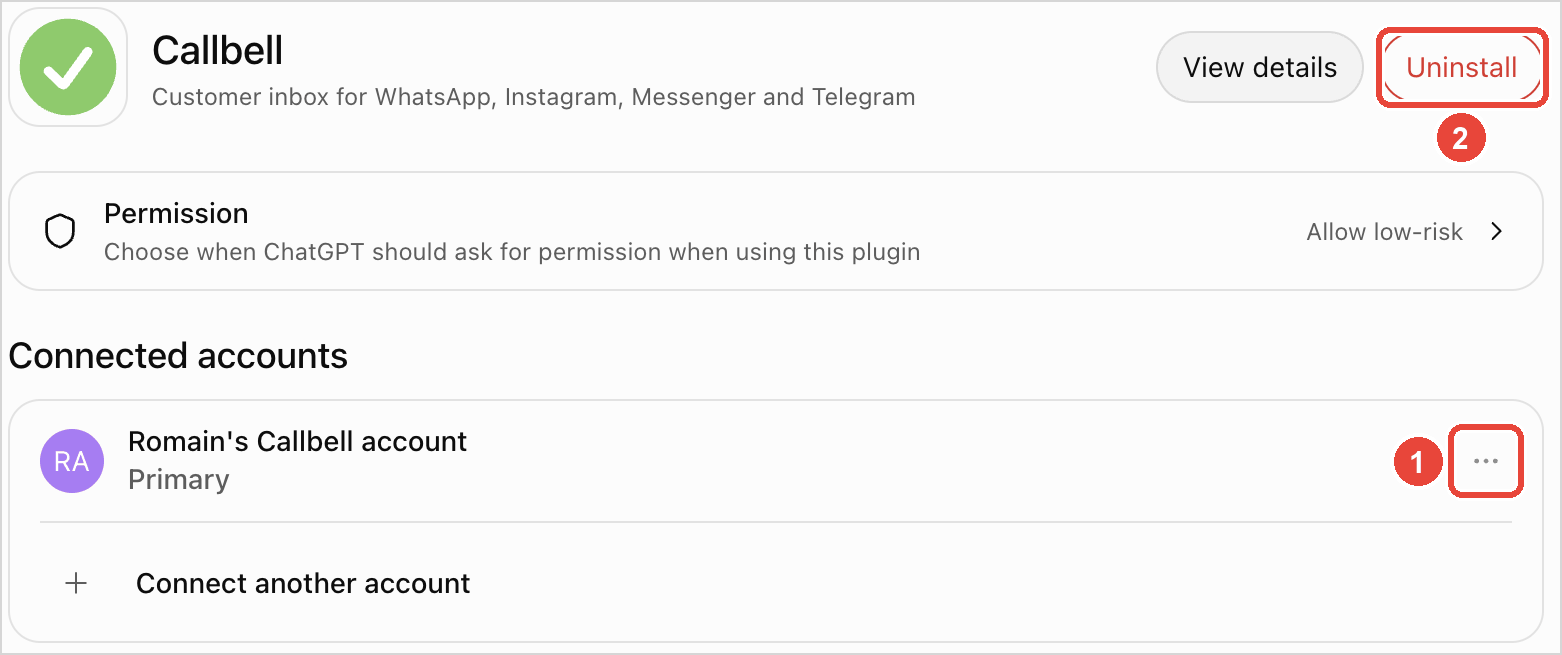
You can also remove the access from Callbell, see Manage connections.