Connect Claude
This guide connects Callbell to Claude as a custom connector. You set it up once on claude.ai, and Callbell is then also available in the Claude desktop and mobile apps.
Custom connectors are available on every Claude plan (the Free plan is limited to one custom connector). On Team and Enterprise plans, only an organization Owner can add a custom connector: see Team and Enterprise plans below.
Step 1: Add the Callbell connector
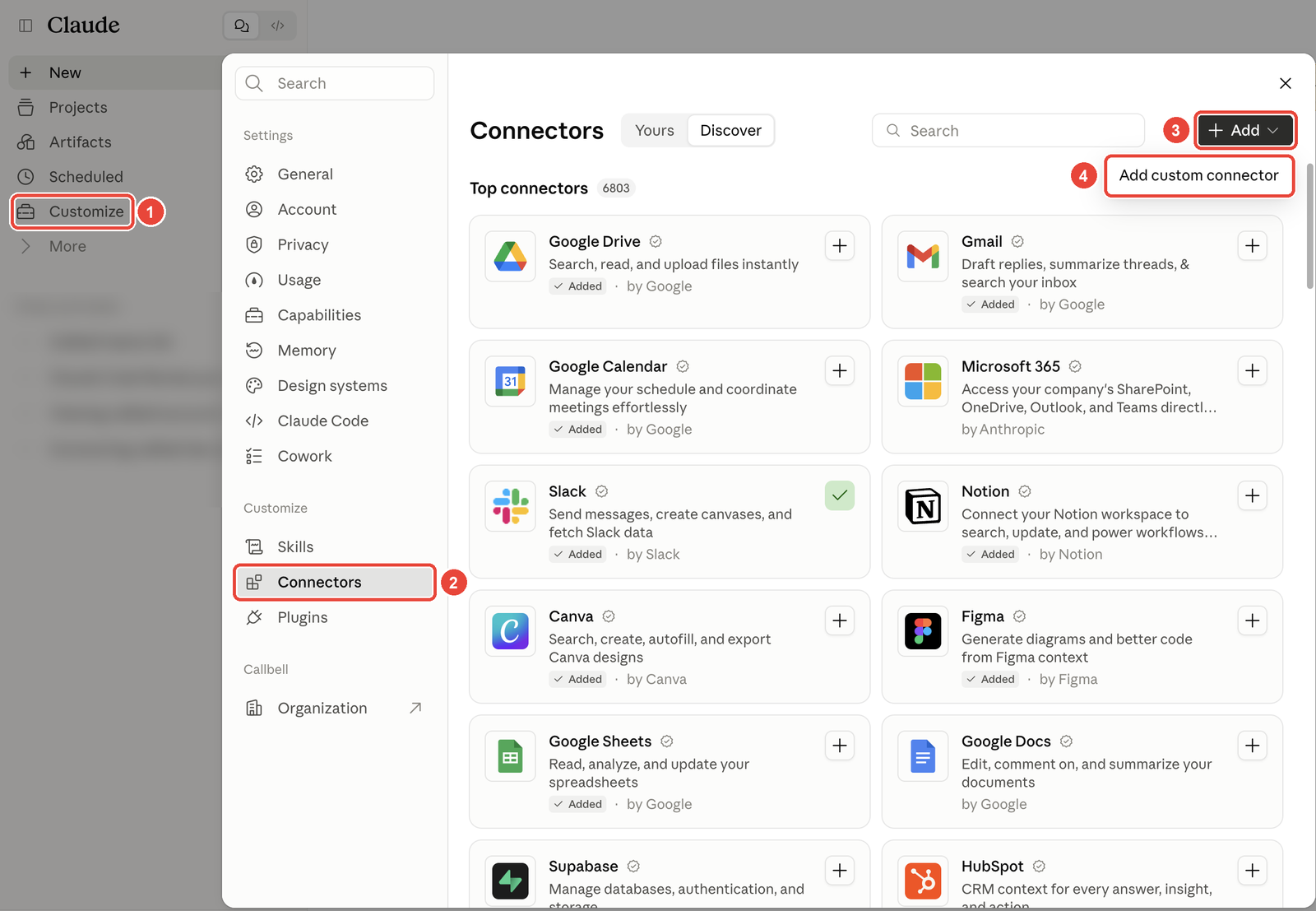
- In Claude, click Customize in the left sidebar, then Connectors.
- Click + Add, then Add custom connector.
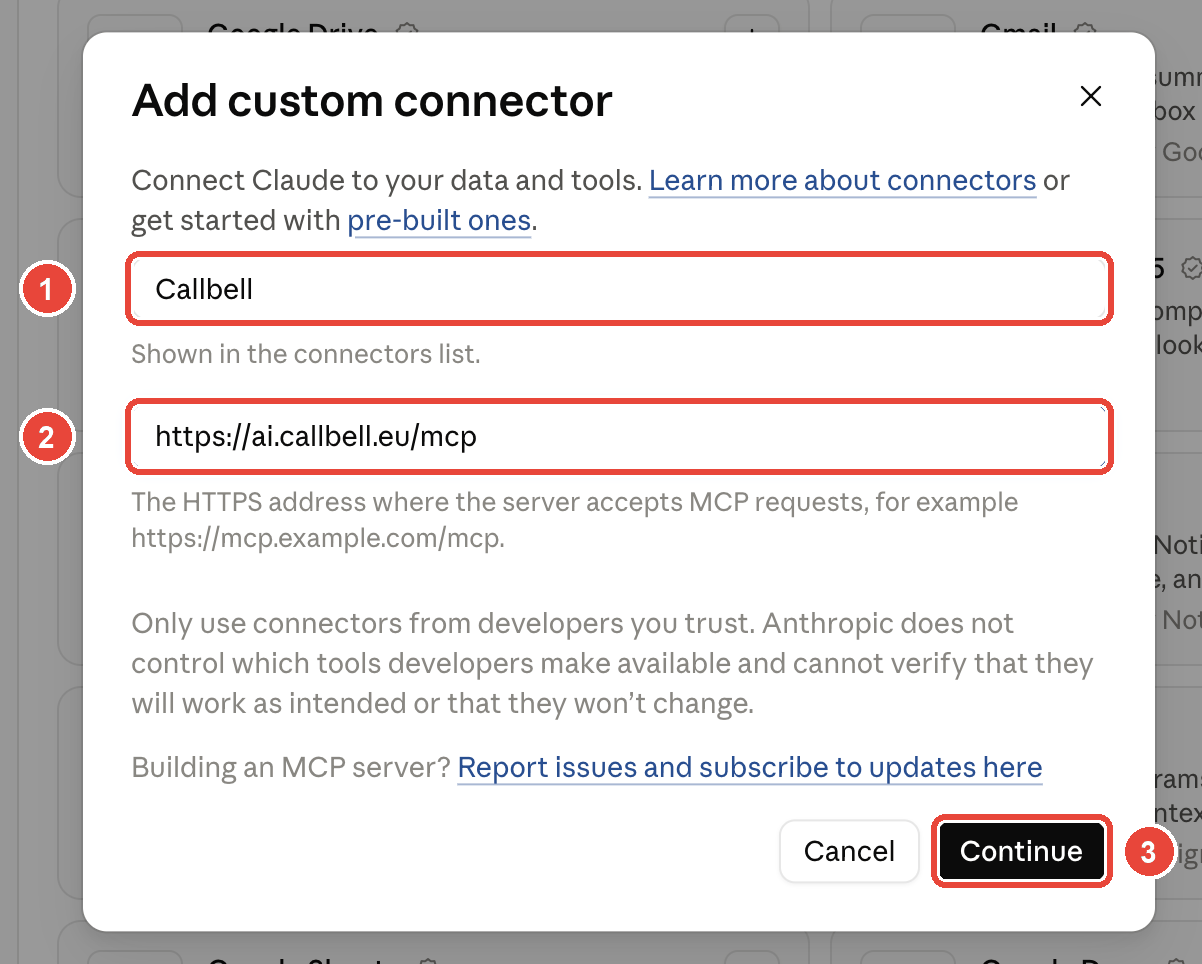
- Fill in the form:
- Name:
Callbell - MCP server URL:
https://ai.callbell.eu/mcp
- Name:
- Click Continue.
If Claude then shows authentication settings, keep sign-in enabled and, under OAuth client, choose Register automatically. Then click Add.
Team and Enterprise plans
On Team and Enterprise plans, an Owner adds Callbell once for the whole organization:
- Go to Organization settings > Connectors.
- Click Add, choose Custom, then Web.
- Fill in the same Name and MCP server URL as above, then confirm.
Members then find Callbell (with the Custom label) in Customize > Connectors and continue with step 2. Each member connects with their own Callbell login.
Step 2: Connect your Callbell account
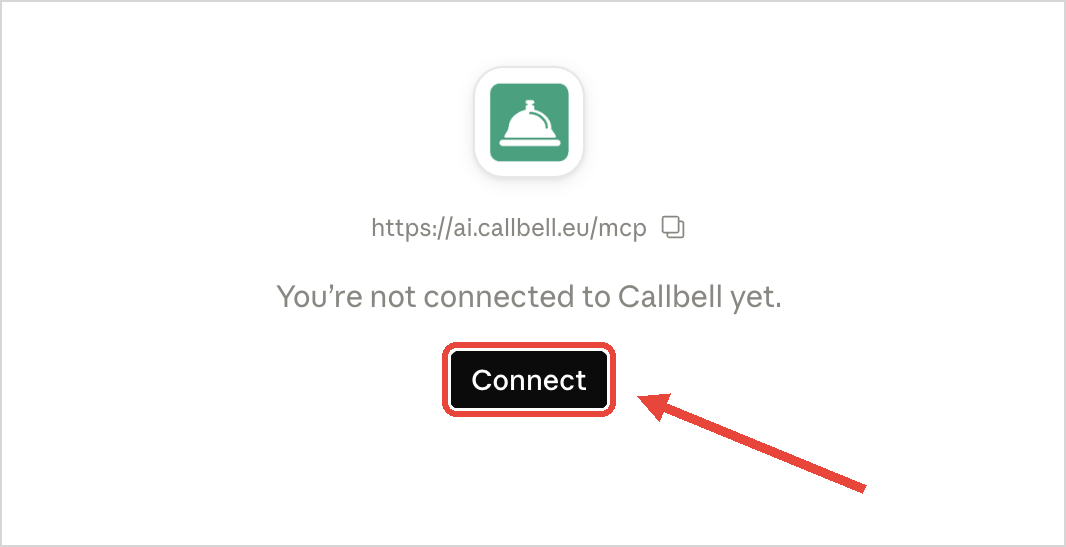
- Open the Callbell connector and click Connect.
- Claude opens Callbell. Log in with your Callbell user if you are not logged in already.
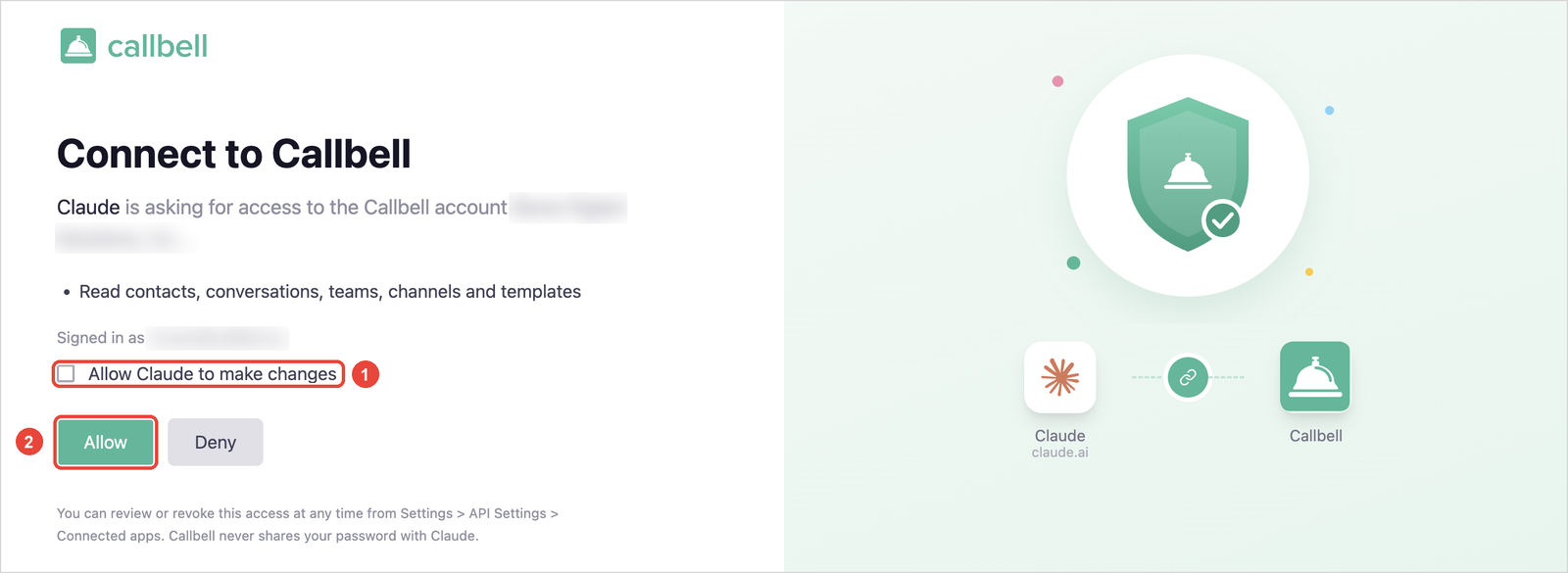
- Review the access request:
- Tick Allow Claude to make changes only if you want Claude to send messages, update contacts, add notes and close conversations. Leave it unticked for read-only access.
- Click Allow.
You are sent back to Claude, and the Callbell connector now lists its tools.
Step 3: Choose when Claude can use each tool
The connector page lists the Callbell tools. By default, Claude asks for your approval before each use (Needs approval). Use the icons next to each tool, or the menu next to each group, to let Claude use a tool without asking, ask you every time, or never use it.
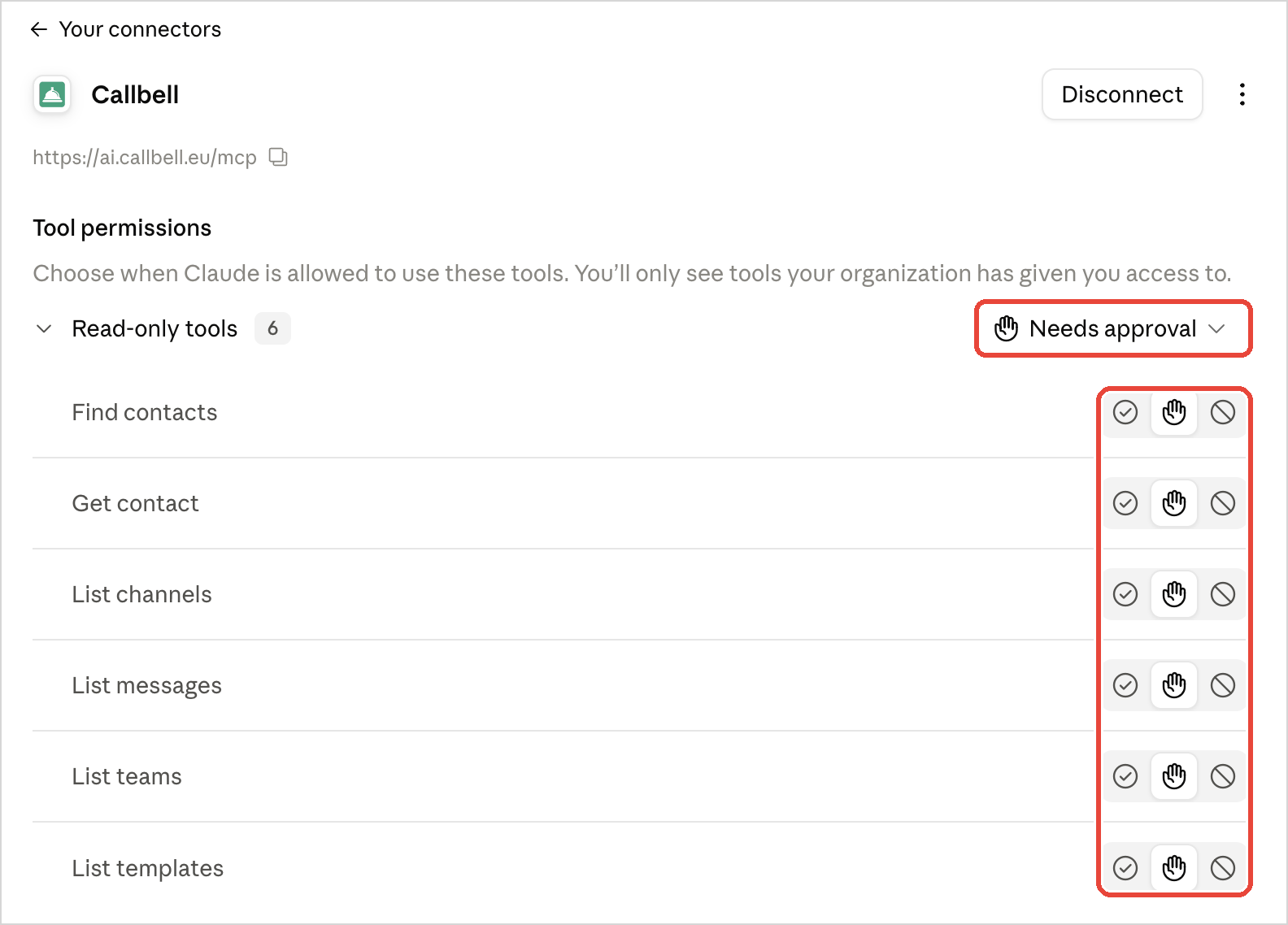
Keep Needs approval on the write tools (send messages, update contacts, add notes, close conversations) so that you check every change before Claude makes it.
Step 4: Use Callbell in a chat
- In a chat, click +, then Connectors, and check that Callbell is switched on.
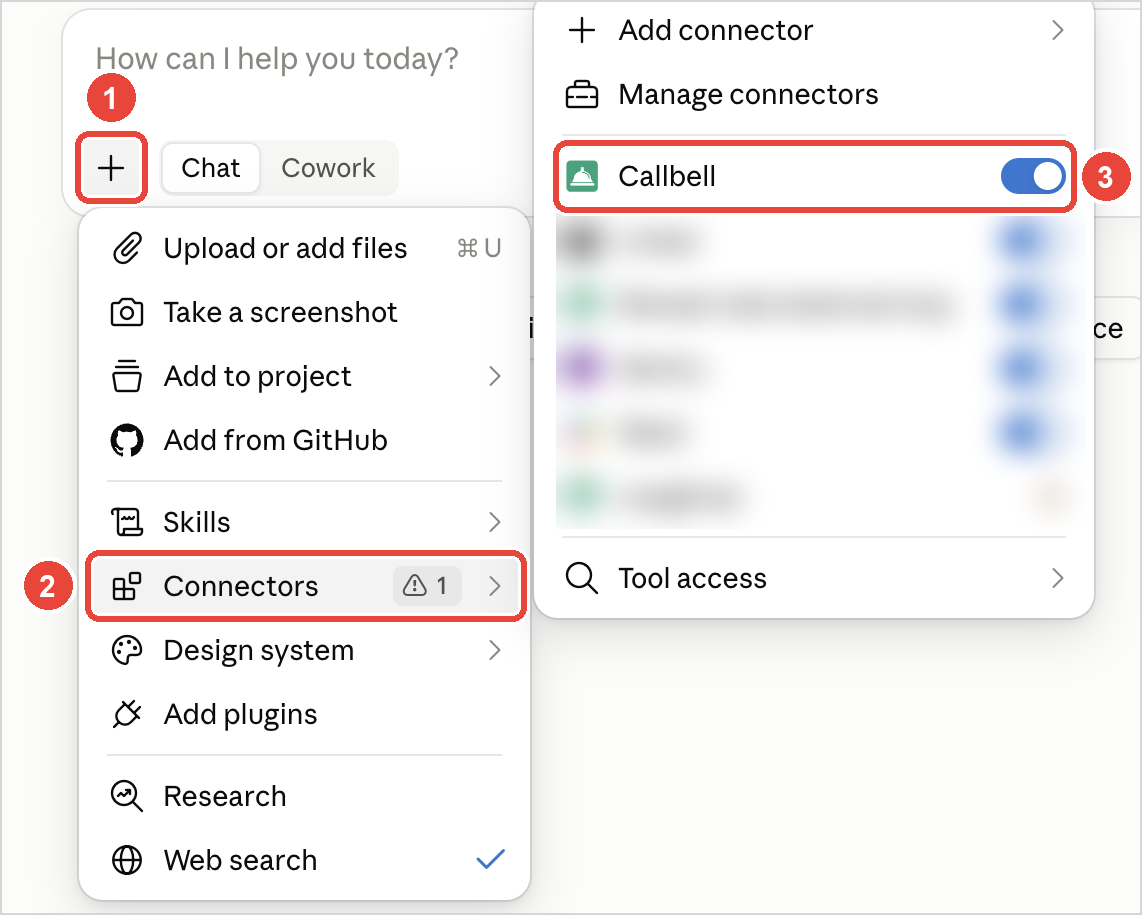
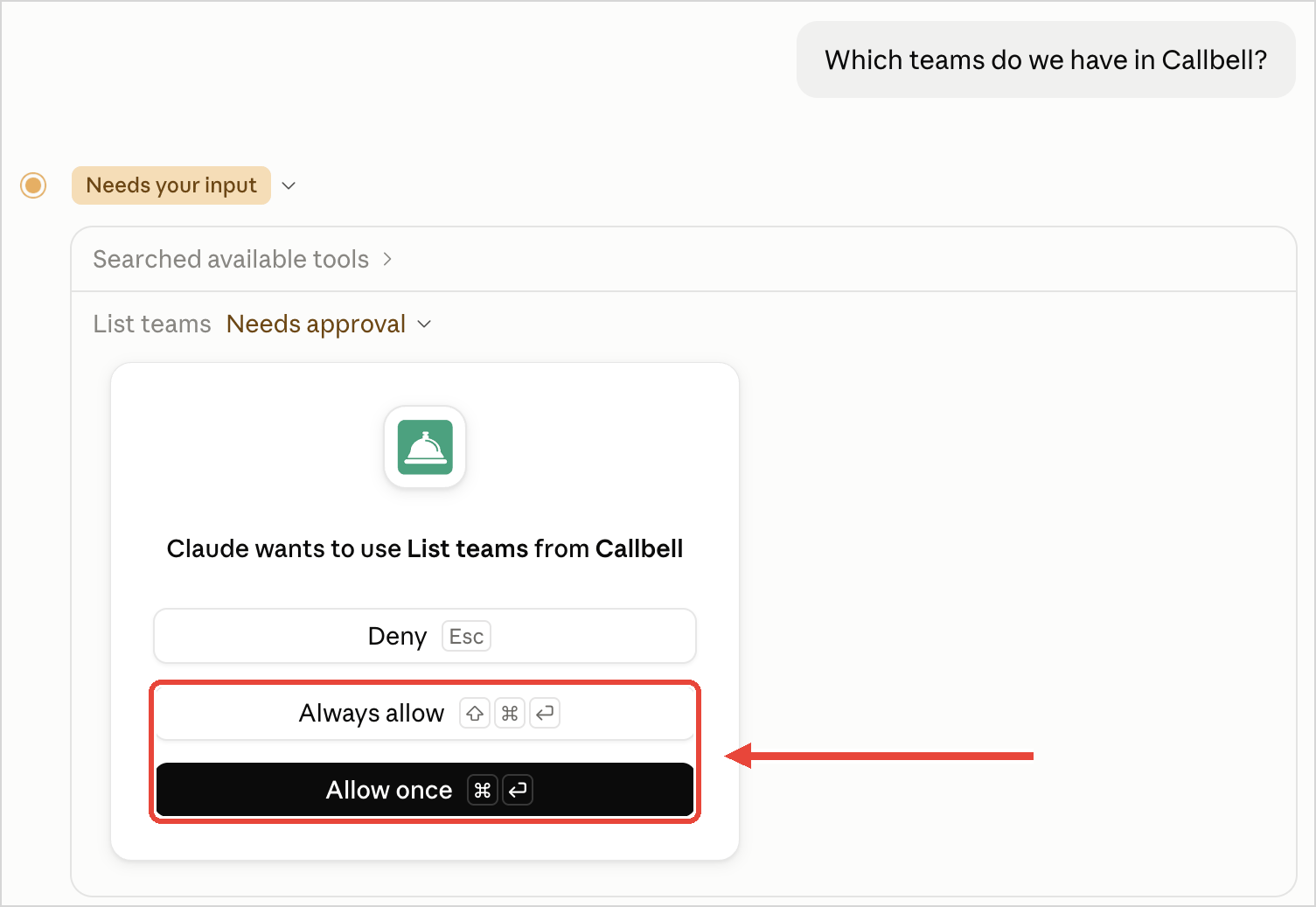
- Ask a question about your Callbell account, for example "Which teams do we have in Callbell?". When Claude wants to use a Callbell tool, it asks you first: click Allow once, or Always allow to stop being asked for this tool.
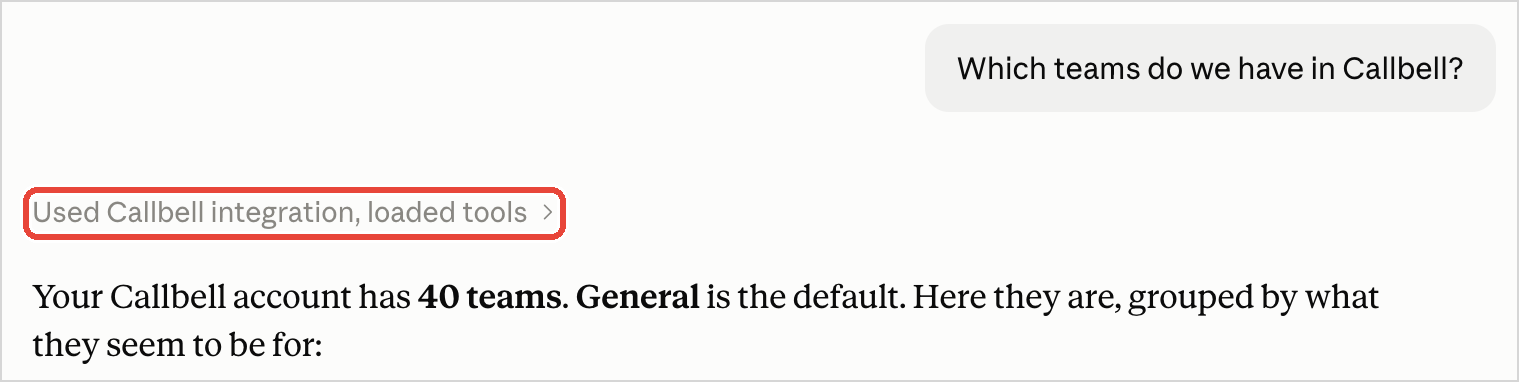
- Claude answers with data from your Callbell account.
Disconnect Claude
On the Callbell connector page in Claude, click Disconnect. You can also remove the access from Callbell, see Manage connections.